
You're ready for battle but are asking yourself - how do Invokers work in battle? Prepare for your next fight with this comprehensive guide!
This guide covers how you select your Invokers for battle, what you will see during a typical Battle and the Battle Results screen.

The Pre-Battle Screen
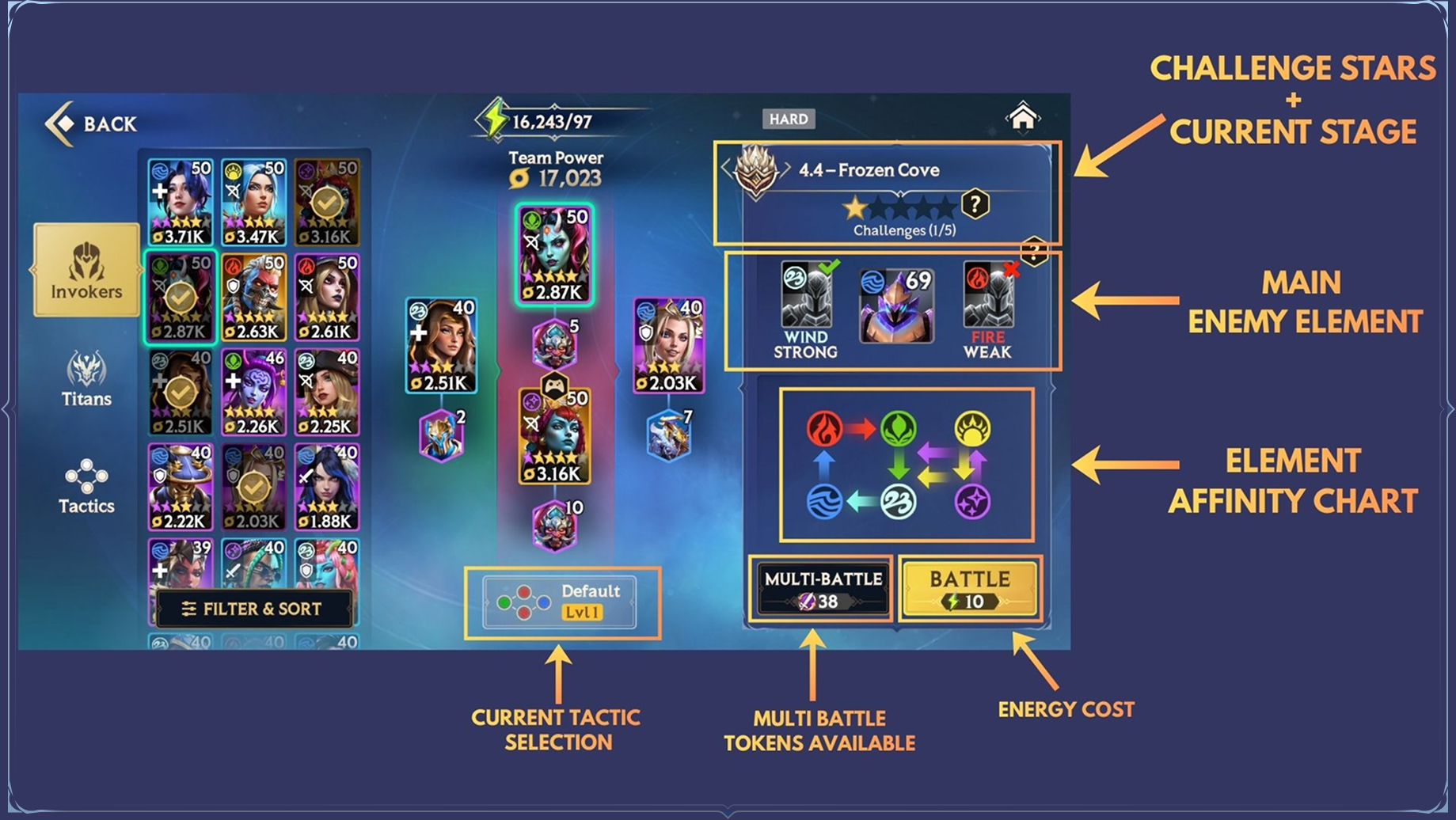
Before you enter a Battle, you will encounter the Pre-Battle Screen. Here you will:
Select your Invoker line-up
Bind Titans to your Invokers
Pick your Invokers’ Tactics
See which Element the enemies you are facing are
In the Campaign, you can also see the amount of Challenge Stars you’ve unlocked for that Stage.
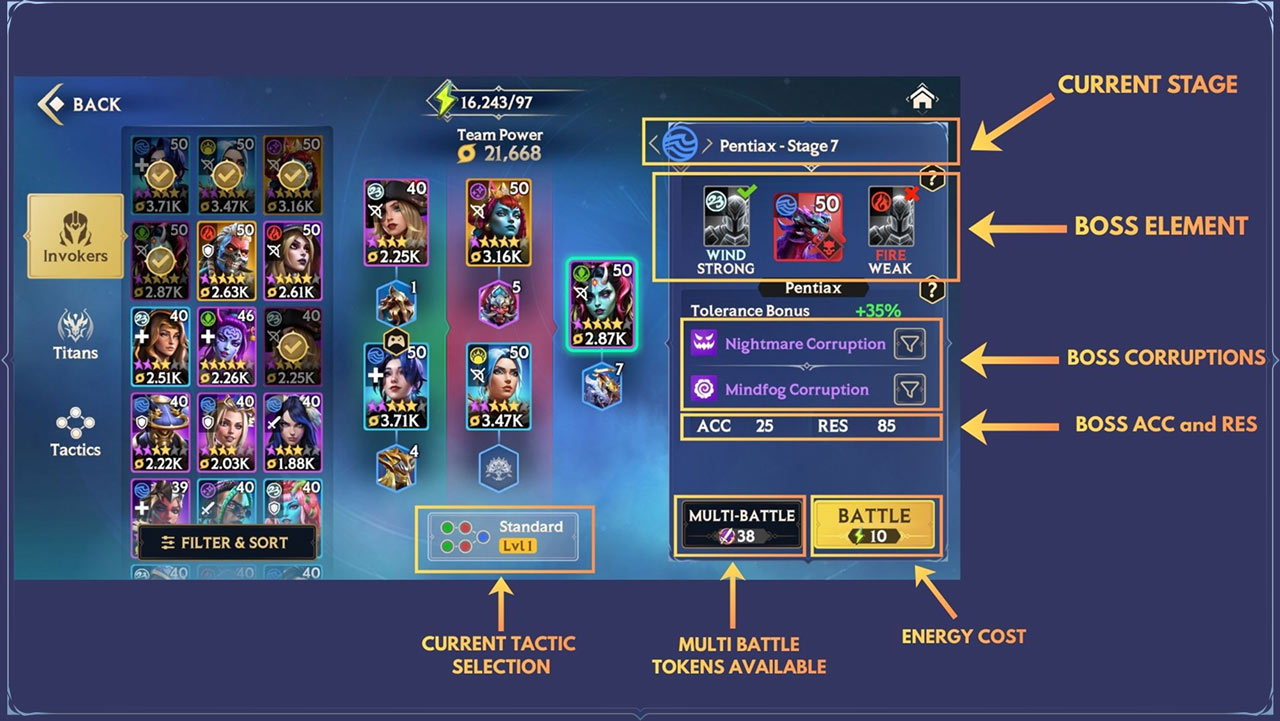
In Boss Mode, you will see the Boss’ ACC and RES stats, as well as the Corruptions it can apply to your Invokers.

Selecting Invokers
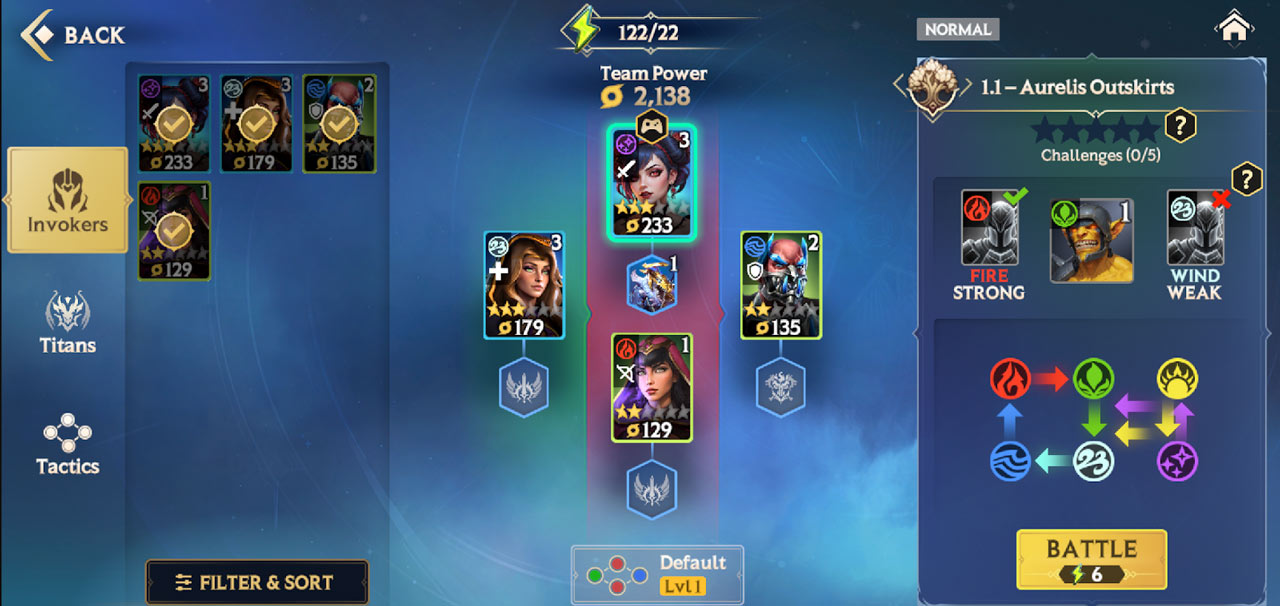
To select the Invokers you need for battle, pick them from your collection shown on the left-hand side of the Pre-Battle screen.
In Campaign, you can bring 4 Invokers into battle.
In Boss Mode, you can bring 5.
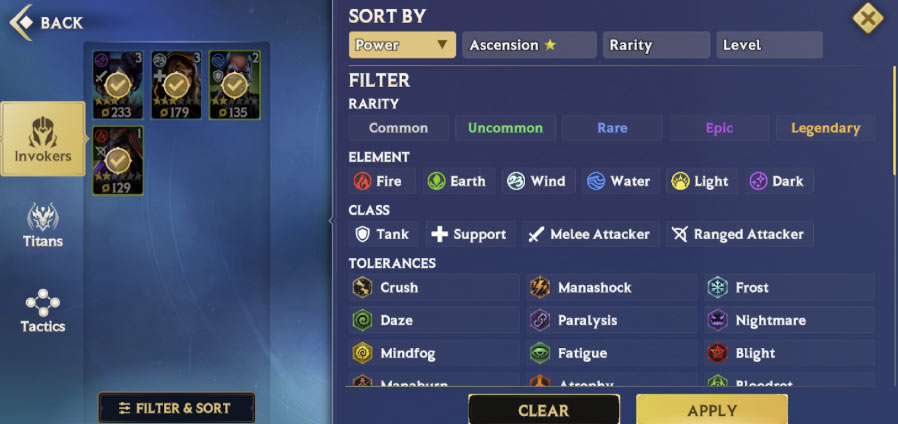
If you require an Invoker with a particular Element, Tolerance or so on, you can use the Filter and Sort option to find the exact one you want.
Hit the “Filter and Sort” button to bring up your filtering options. You can filter Invokers by:
Rarity
Element
Class
Tolerances
Faction
Buffs and Debuffs
Tags
Within that, you can then sort them by Invoker Power, what level of Ascension they are at, their Rarity and their Level.

Titans
Each Invoker can have a Titan bound to them. On the Titans tab, you can select which Titans your Invokers will bring into Battle.
Each Invoker can only have one Titan bound to them. Titans can not be shared across multiple Invokers in a Battle.
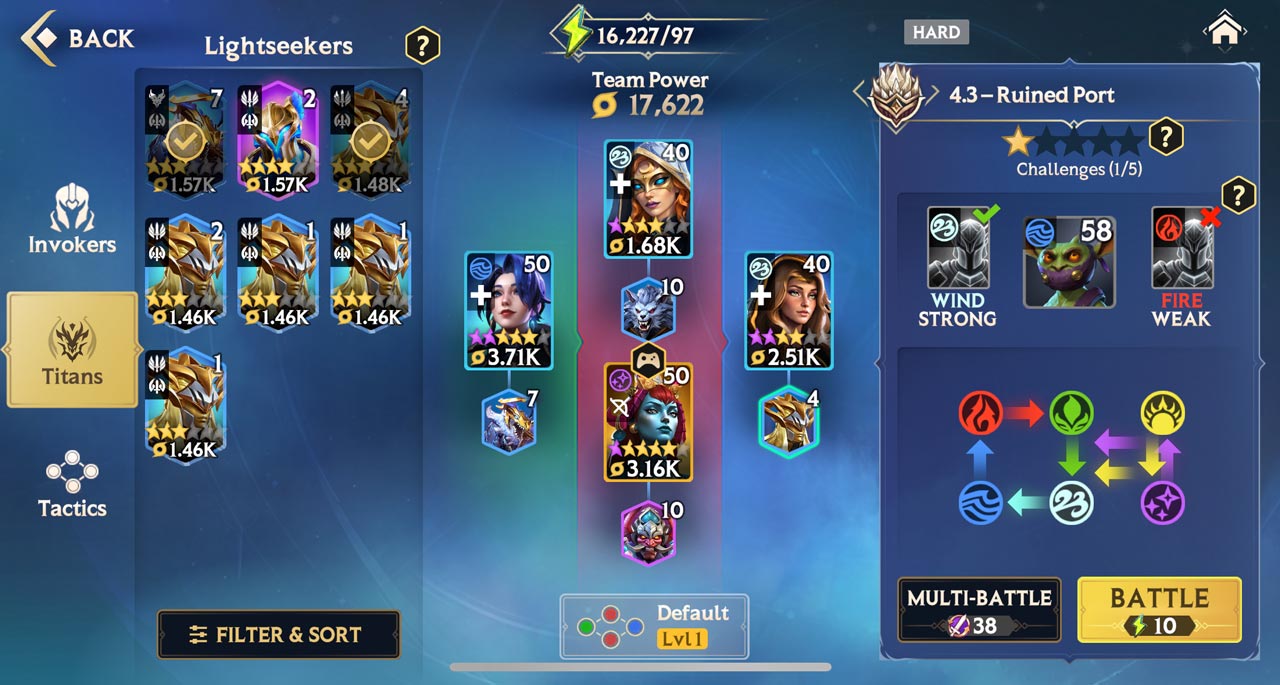
Just like Invokers, Titans can also be filtered and sorted using the same settings.
For a full breakdown of how Titans work in battle, check out our dedicated guide.
Tactics
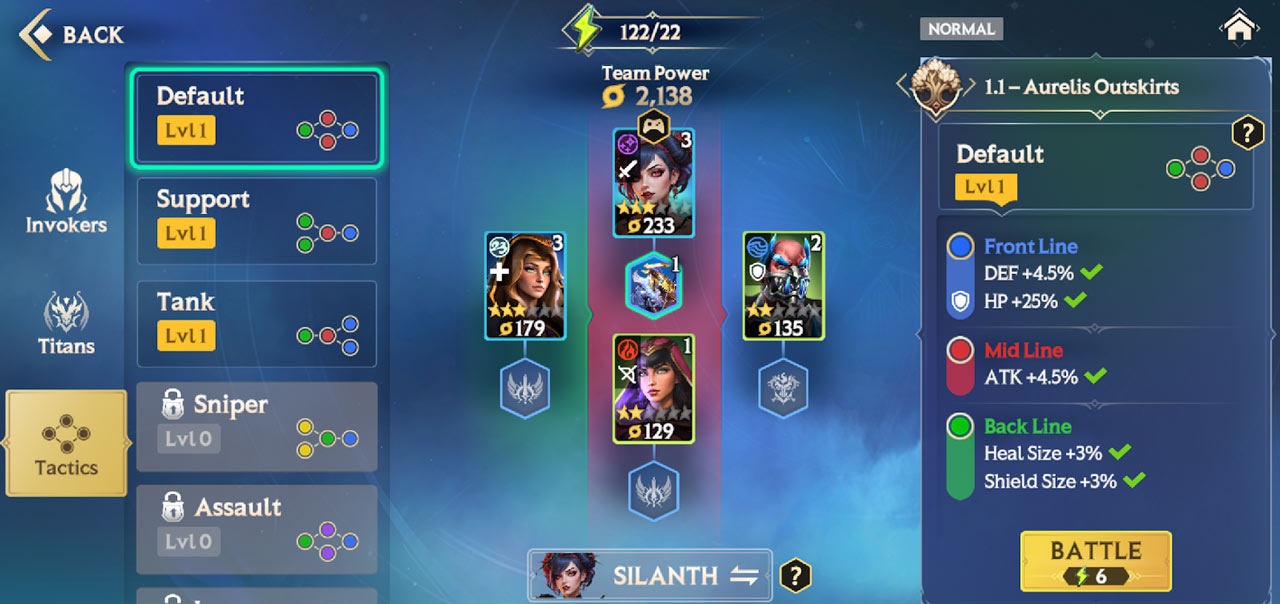
When selected, Invokers will be placed within something called a Tactic. This will grant certain Bonuses, based on where you position each Invoker.
The 3 positions are:
The Front Line – Invokers here are prioritized by enemies and more heavily targeted than Mid or Back Line Invokers
The Mid Line
The Back Line
Tactics provide Bonuses to all Invokers in a specific Line. Certain Tactics will also provide a Class Bonus if you place an Invoker of a specific Class in that Line.
You unlock more Tactics as your Account Level increases.
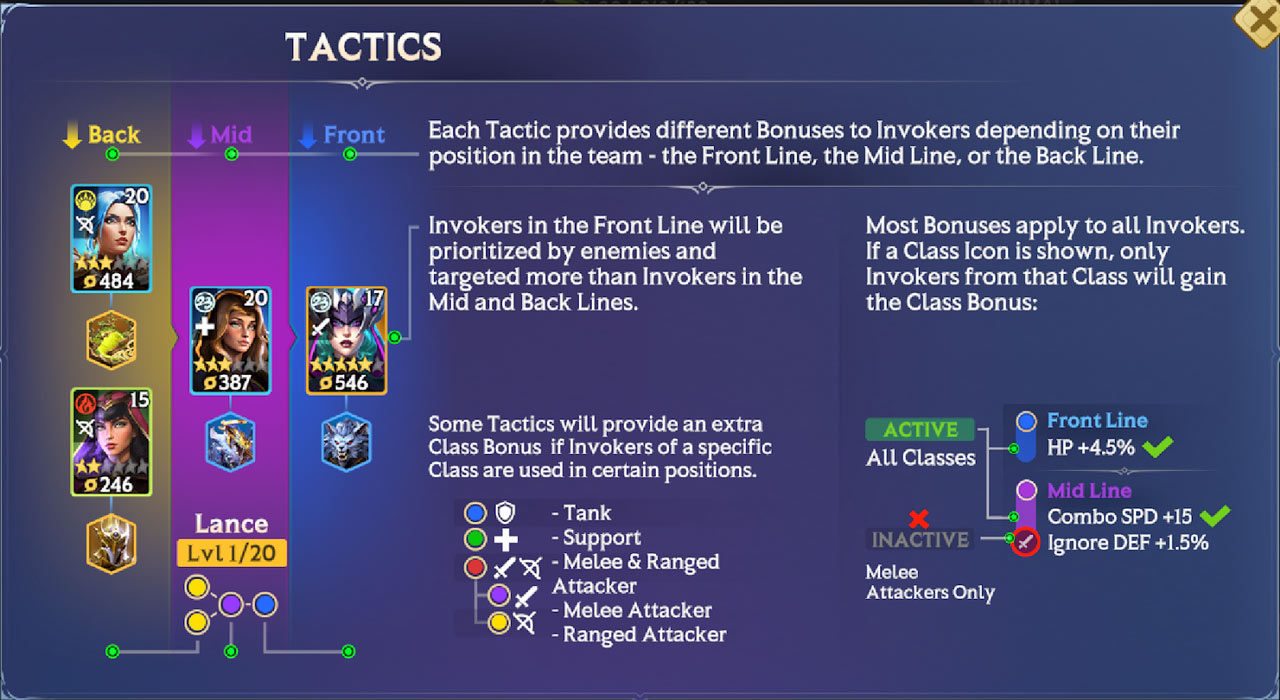
In the Tactics tab, you can also select your Lead Invoker. This is the Invoker that will lead your team.
On Manual, you will control your Lead Invoker when you start the Battle. Your Lead Invoker is indicated by the game controller icon above their head.
On Auto, your Lead Invoker will run at the front of your team – being the first to engage enemies.
Press the Invoker Swap button at the bottom of the Tactics screen to pick the Invoker you want to be your Lead.
Multi-Battle
You can automatically set your game to run multiple battles in a row, without having to step in and hit Replay manually. You can run Multi-Battles in Boss Mode and in the Campaign.
Multi-Battle unlocks when you reach Campaign Chapter 2.
You get 10 free Multi-Battle Tokens each day at 00:00 UTC. You can only receive up to 15 Multi-Battle Tokens this way each day i.e. if you have 10 Multi-Battle Tokens left at the end of a day, you will then only receive an additional 5 at 00:00 UTC the following day.
You can earn an additional 5 Multi-Battle Tokens via Playtime Rewards and then another 5 via Daily Quests, meaning a total of 20 free Multi-Battles each day.
Sets of 40 Multi-Battle Tokens can be purchased from the in-game Shop for 100 Gems.
- To enter a Multi-Battle, enter any Level in the Campaign or Boss Mode Stage, hit “Multi-Battle”, and choose your settings.
- Select the number of Battles you want to run.
- Set your Stop-Loss. Multi-Battle will automatically stop re-running a Level after a certain number of lost battles. By default, this is set to 1 Loss.
- Enable Auto-Refill or not. Auto-Refill will keep refilling Energy using your Gems until you run out of Gems or Multi-Battle Tokens.
- Hit “Start Multi-Battle”.
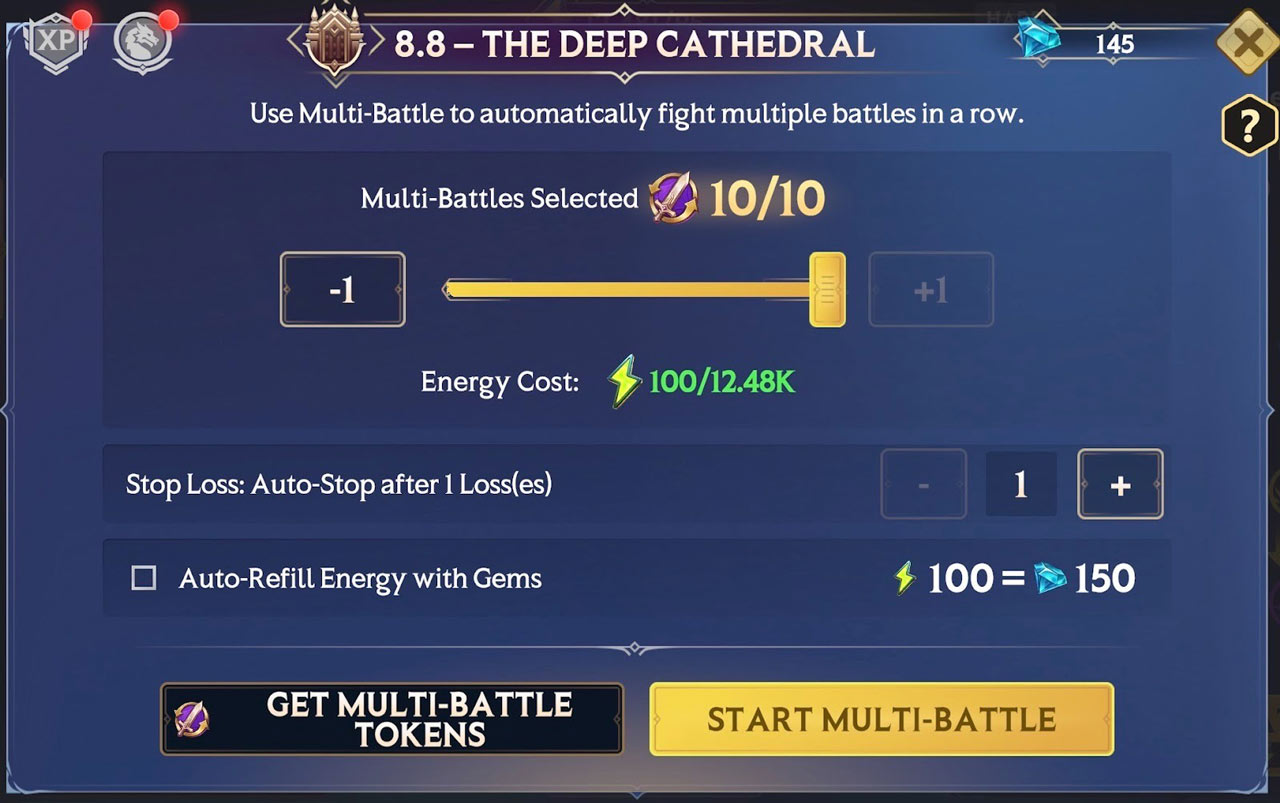
Multi-Battles will run on Auto by default, but you can step in to help your team on Manual if you need. Just remember to put it back on Auto when you're done.
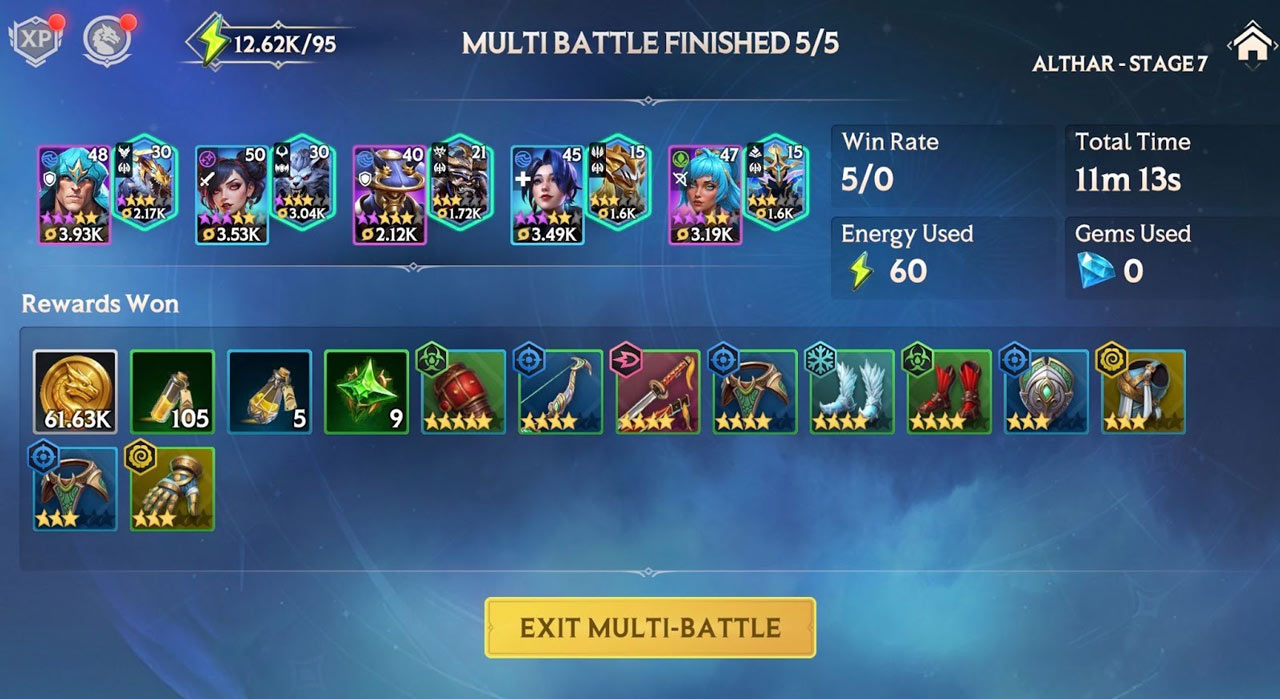
Multi-Battle will end when you hit your set number of Battles, you run out of Energy or Gems, or hit your Stop Loss. When Multi-Battle ends, you'll see a new Reward screen summarizing everything you've won.
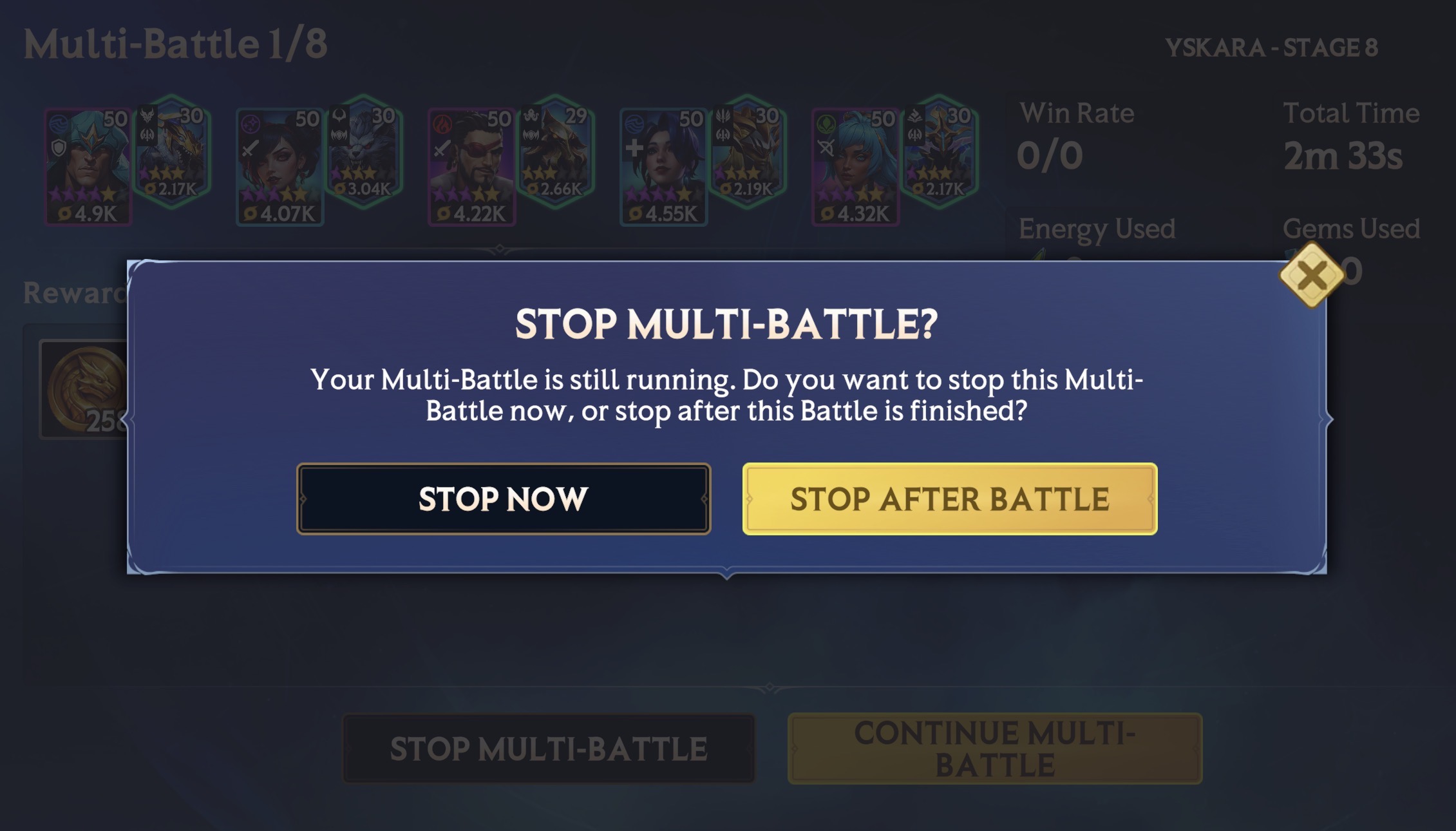
You can also stop your Multi-Battle at any time by pressing the "View Rewards" tab on the Battle Screen. You can choose to either stop the Multi-Battle immediately, or stop the Multi-Battle after the current Battle has finished.
The Battle Screen
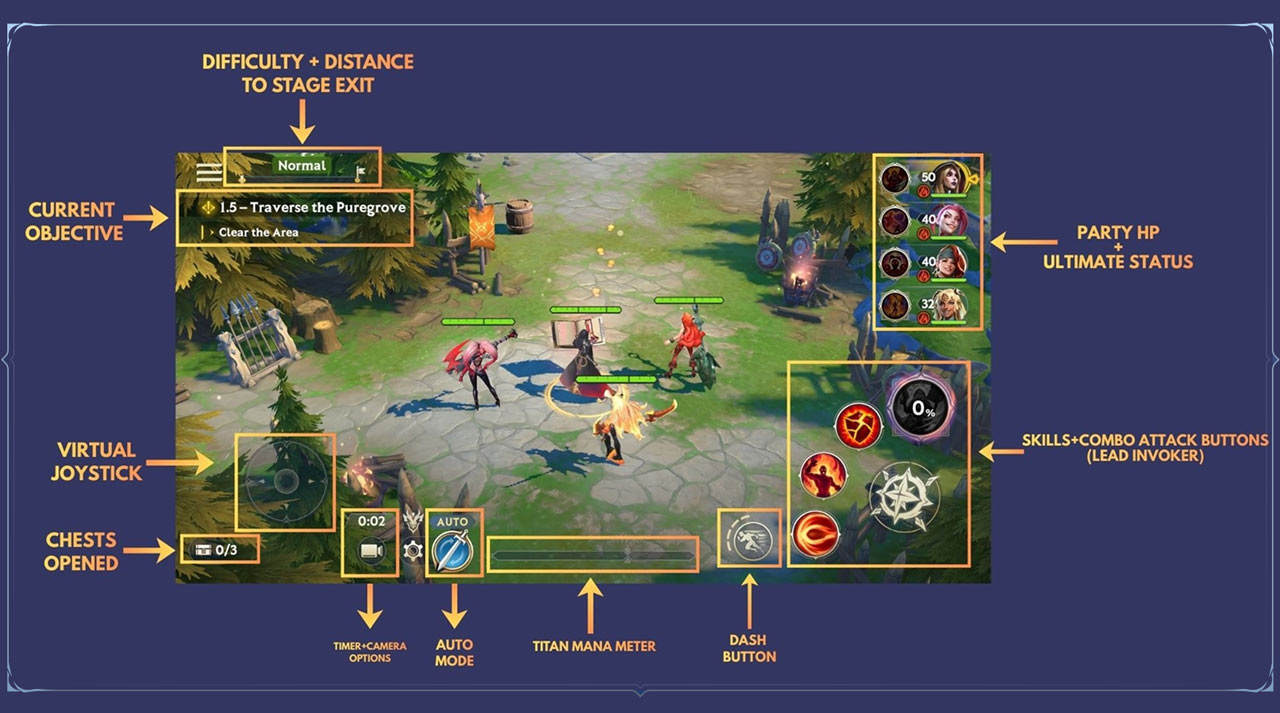
When you enter a Battle, this is what you’ll typically see on-screen.
In Campaign, your goal is to complete the objective seen on the top left of the screen. The “progress bar” at the very top tells you how far you are from the Stage’s exit.
If you are confused as to where to go next, follow the golden footsteps that appear on-screen. They’ll guide you to your current objective.
Difficulty + Distance to Stage Exit
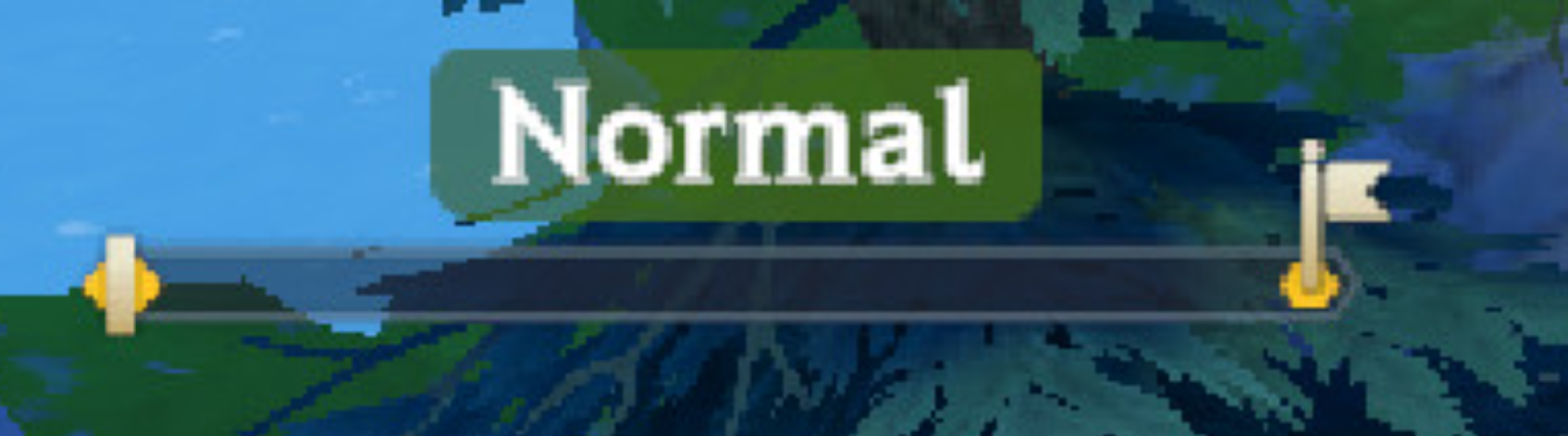
Quite simple – this tells you the current difficulty level and how far you are from the end of the Stage. As you move through the Stage, the white bar will fill.
Current Objective
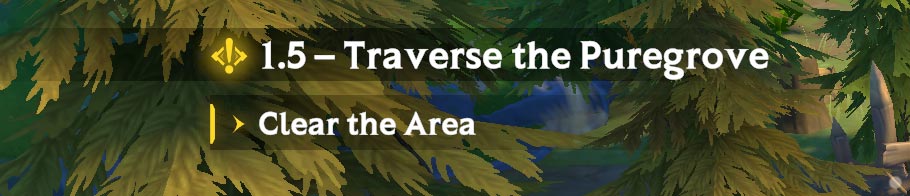
At the top is your main objective, and below is your current objective. As you move through the Stage, you will clear objectives and gain new ones.
Virtual Joystick
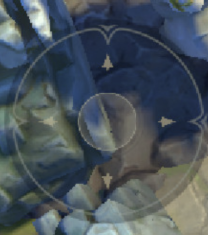
Tap and drag on the Virtual Joystick to move your Lead Invoker around. You can also tap a location on the screen to move your Lead Invoker to as well.
Chests Opened
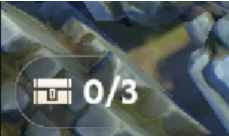
This tells you the number of Chests you’ve opened successfully in a Campaign Stage.
You need to open all of them (and have all your Invokers alive at the end of a Stage) to earn a specific Campaign Star.
Timer + Camera Options
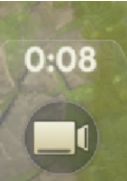
The timer indicates how long you’ve spent in the current Battle. By tapping the Camera, you can zoom the camera in to gain a more cinematic view of the action.
Dash Button

Press this button to dash out of the way of danger! The pips around the icon show you how many dashes you have available.
When playing in Auto Mode, your Invokers will dash automatically out of Danger Zones – if their Instinct Stat is high enough!
Party HP + Ultimate Status
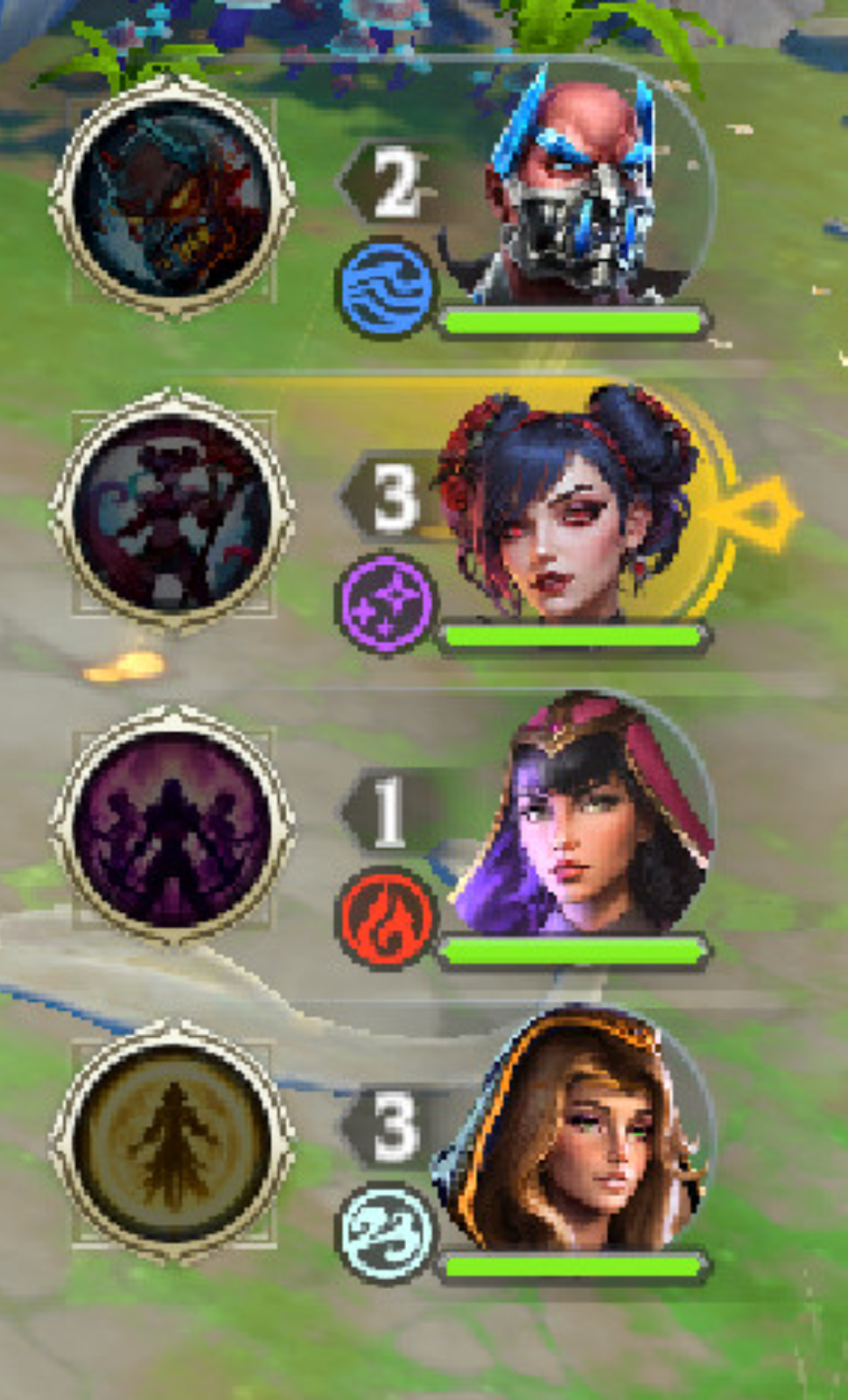
This tells you, at a glance, the current HP of all your Invokers, along with if their Ultimate’s ready.
The Invoker highlighted in gold is your Lead Invoker.
Follow Me/Spread Out

You can choose to make your Invokers group up and follow your Lead Invoker, or spread out. Use these options to dodge specific attacks!
NOTE: This button is available all the time in Boss Mode, but you'll need to reach a specific point in both the Spires and the Campaign to unlock it there.
Invoker Skills
In the bottom right-hand corner of the screen is your Lead Invoker’s Skills and Combo Attack buttons.
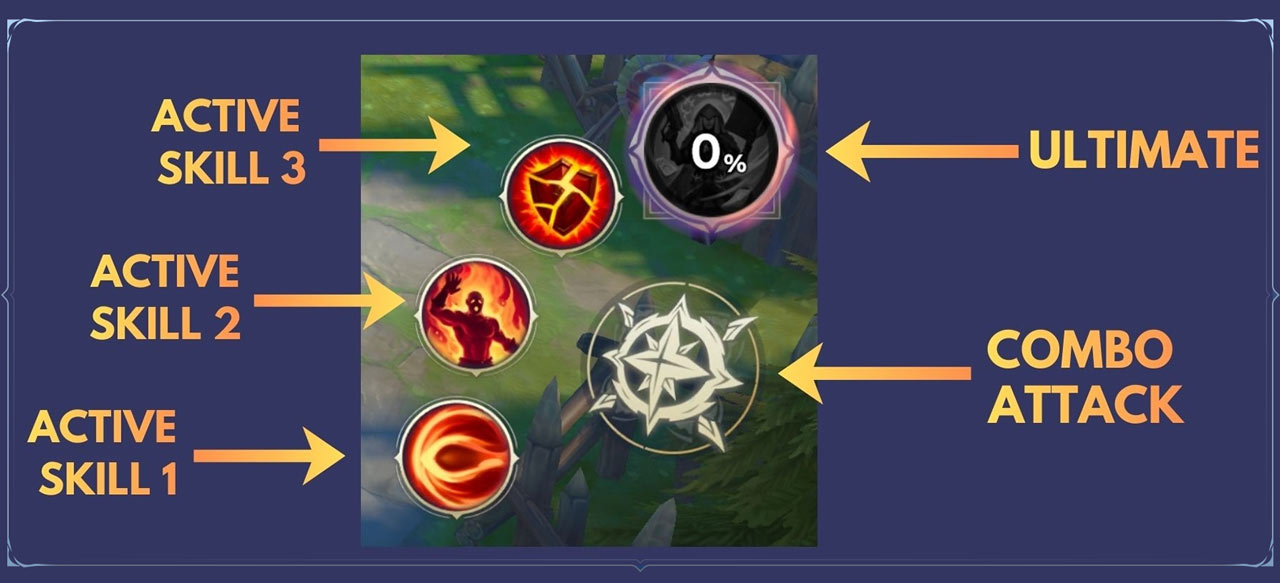
When the Skill buttons are lit up, that means they are ready to use.
The Combo Attack button has no cooldown, so it can be used whenever.
For an Ultimate, you must collect enough Ultimate Mana in order to use it. Your Invoker’s current Ultimate Mana is indicated by the percentage on its icon.
Important! Each Invoker has their own, individual pool of Ultimate Mana.
You cannot generate Ultimate Mana by using Skills or Combo Attacks outside of combat.
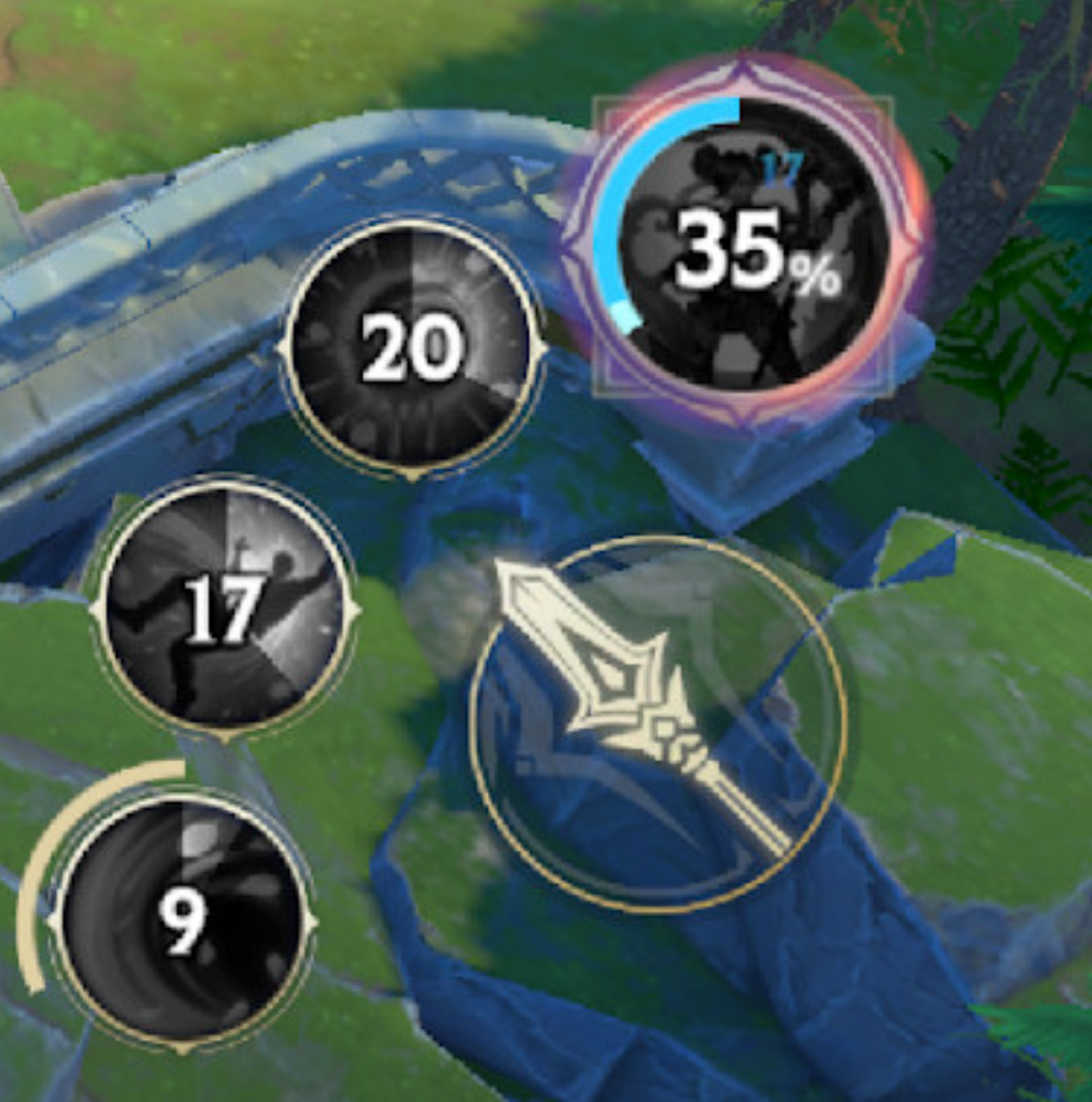
When a Skill is on cooldown, its icon will appear grey and show a number, indicating how long until it is ready to use again.
Titan Mana Meter
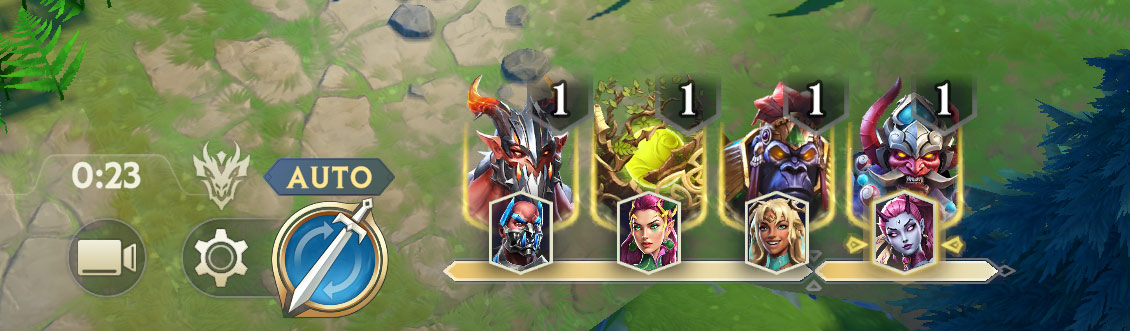
Your Titan Meter is displayed at the bottom of your screen during battle.
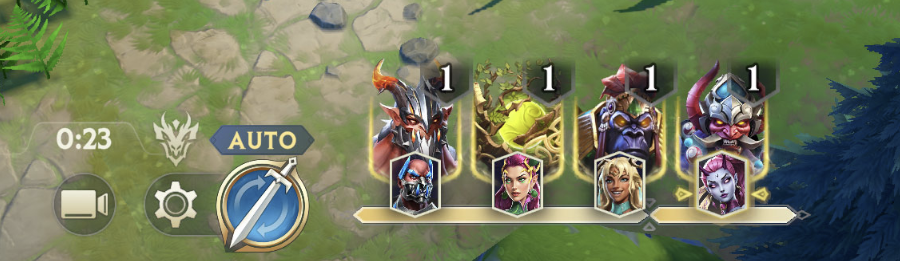
When your team has enough Titan Mana, it's Invokation Time: Titan Cards will appear at the bottom of your screen.
Hit the Card and that Invoker will Invoke their Titan – even if you're not controlling them at the time.
Meter Overflow. It's not always the right time to Invoke a Titan – if it's four Invokers against a single straggling Goblin, you might want to hold your Titans for later. Don't worry, your Titan Mana Meter has an overflow; you'll still be able to generate and store Titan Mana without wasting it.
Pro Tip: Increasing Mana Gen affects both Ultimate and Titan Mana. Higher Mana Gen means you'll be able to Invoke Titans more frequently in-battle, which is one of the best ways to increase your team's damage output.
Auto Mode
At any point during a Battle, you can switch between Auto and Manual Mode.
In Auto Mode, your team will fight automatically. At any point, you can override the AI of your Lead Invoker by using the Virtual Joystick or pressing Skills. You can also tap directly on enemies to focus your team’s attacks on them.
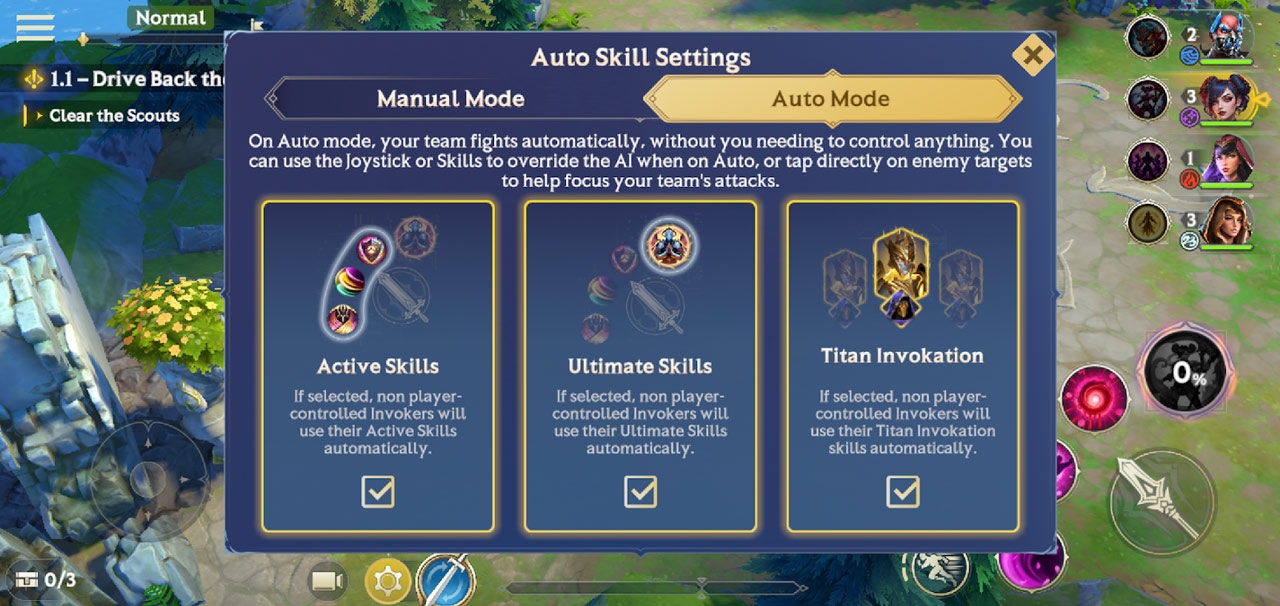
You can also toggle whether your team will use Active Skills, Ultimates, or Titan Invokations when in Auto Mode.
PRO TIP: As a general rule, you’ll want to have Titan Invokation turned off when running a Stage for the first time in Auto. You don’t want to waste a valuable Titan Invokation while you’re moving between fights.
In Auto, your team will automatically follow the golden footsteps to the next objective.
When moving between combat, your team will move according to the Move SPD of the slowest Invoker. Speed them up to lower your clear times!
Manual Mode
When in Manual Mode, you are in full control of your Lead Invoker, with your other Invokers following behind.
To swap between Invokers in both Manual or Auto Mode, simply tap their character portrait.
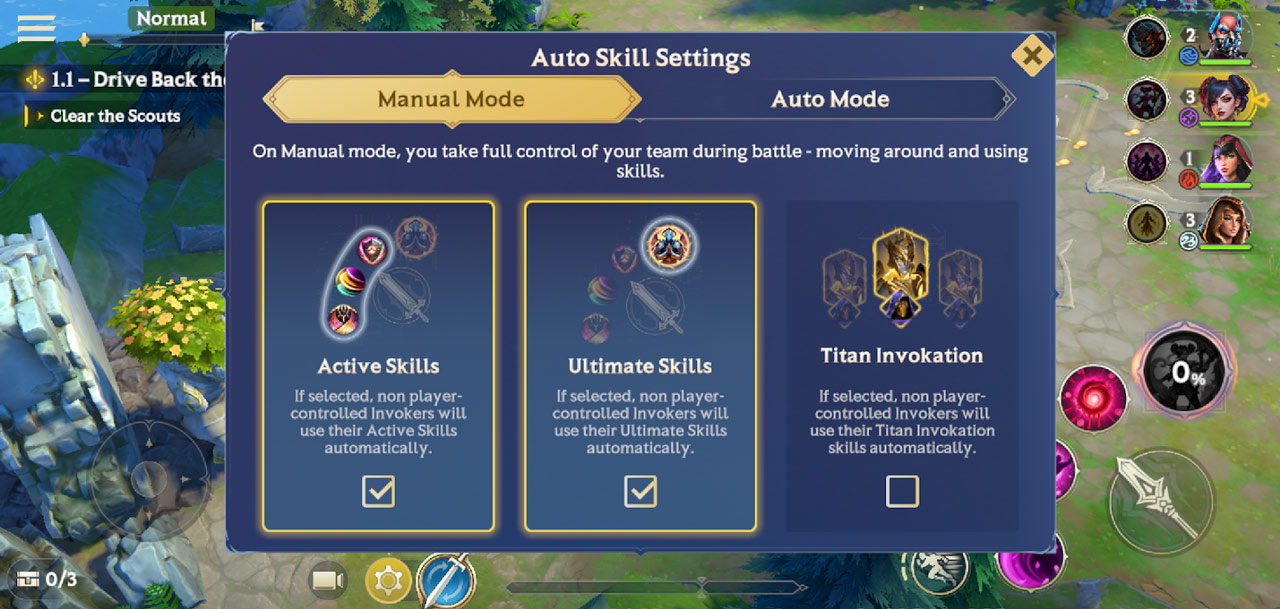
Like in Auto Mode, you can also set if the rest of your team will use Active Skills, Ultimates, or Titan Invokation while in Manual.
Battle Results Screen
Following the completion of a Battle – whether in victory or defeat – you’ll be taken to the Battle Results Screen.
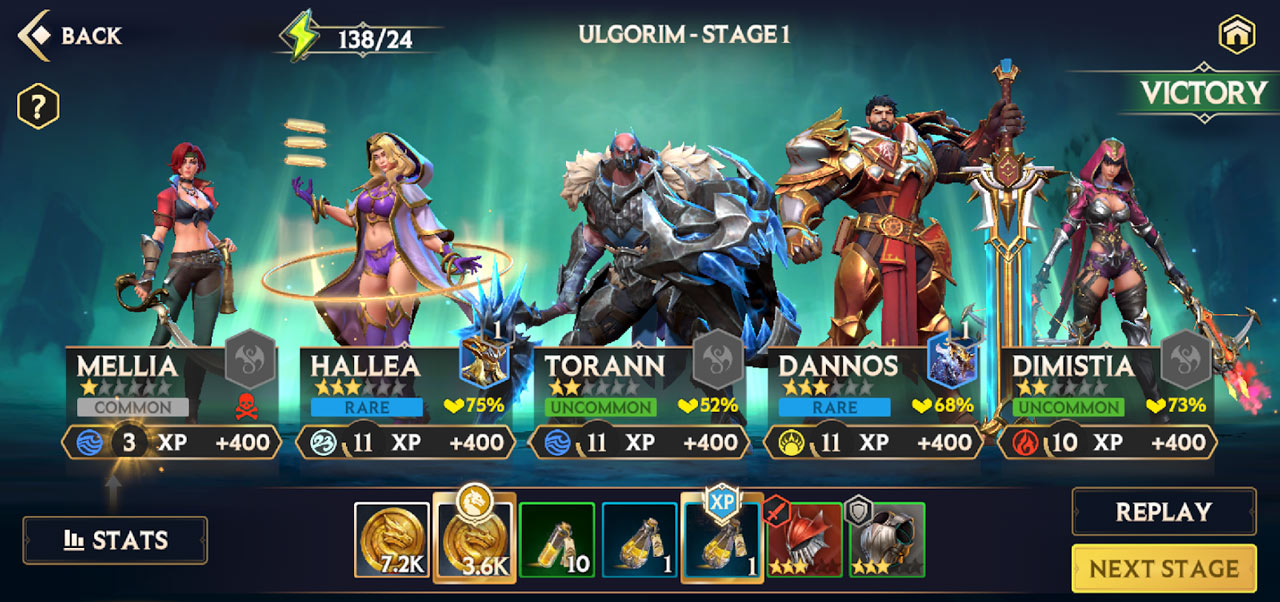
Here, you will see the Gold and XP Potions you earned during the Battle, as well as any Relics, Stars or other loot you managed to collect.
It will also give you a quick overview of your party at the end of the Battle, with stats including:
Their remaining HP at the end of the Battle
The XP they earned from the Battle
Their current Level
If you wish to replay the Battle you were just in, hit the Replay button.
To move onto the next Stage of the Campaign or the current Boss, hit Next Stage.
Battle Report
For a detailed breakdown of your battle stats, you can hit the Stats button in the bottom left of the Battle Results screen.
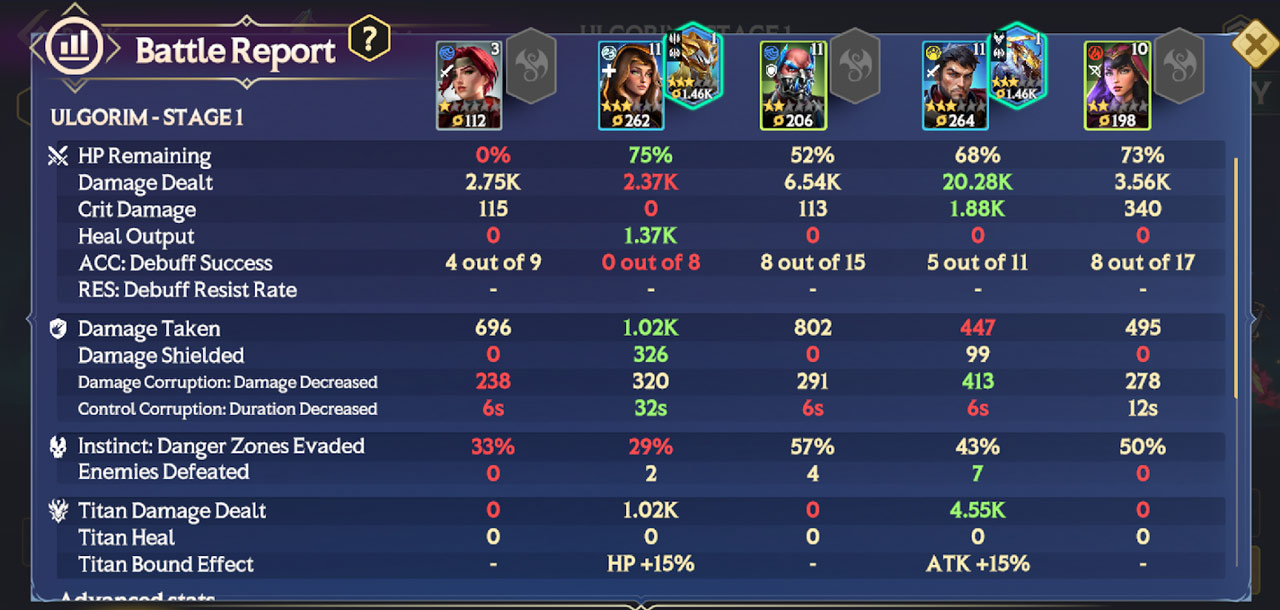
Here, you’ll get an in-depth look at a variety of stats like how much damage each Invoker dealt, their success in applying and resisting debuffs, how many enemies were defeated and so on.
If you’re struggling with a specific Stage, study your Battle Report well. It may reveal where your team needs to improve to succeed next time.